
CWaPE procedures for your energy community
The procedures arising from your changes, the official forms prefilled, their deadlines and the signing of annex 8, gathered in one place.
Creating or changing an energy community in Wallonia means filling in the CWaPE’s forms and the grid operator’s agreements, then meeting deadlines counted in working days. The same data passes from one file to the next (members, supply points, installations), and months later you need to be able to say what was sent and when. OptimCE organises this work into procedures, prepares the documents from the community’s data and keeps a record of every step.
How OptimCE handles it
Procedures arising from your changes
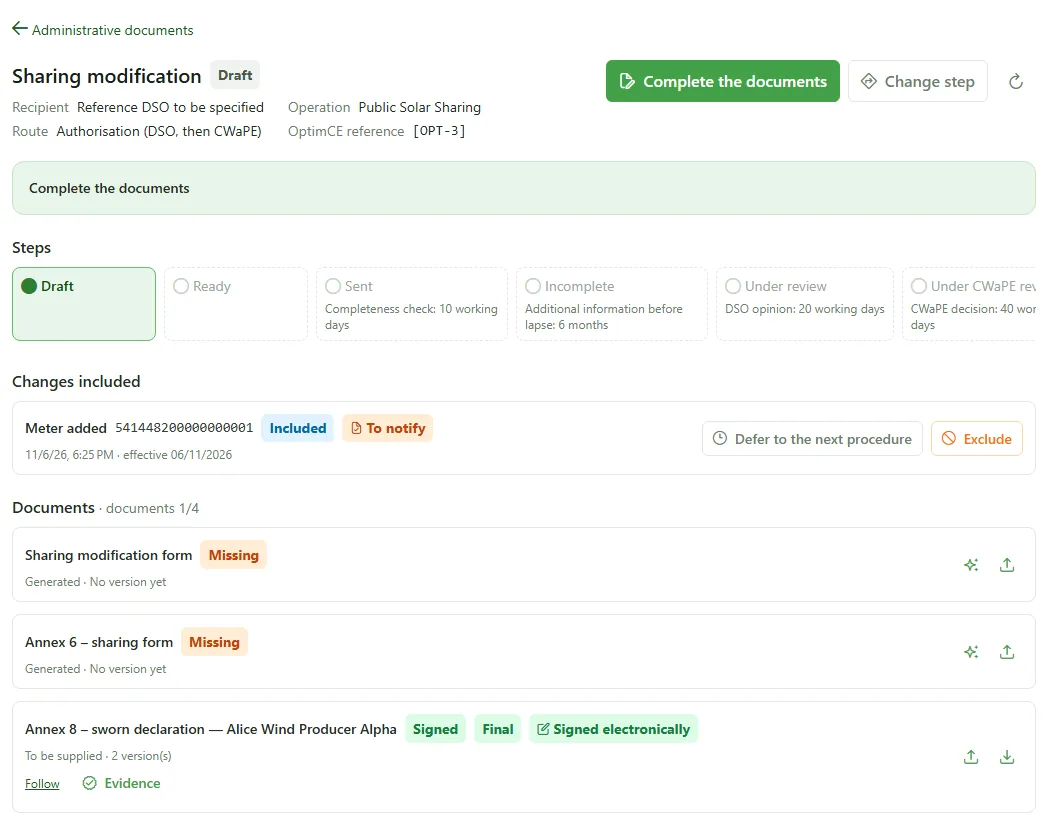
A procedure brings together a form, a recipient (the reference grid operator or the CWaPE) and an effective date. The Walloon catalogue has seven: the sharing modification, by the simple route (DSO only) or by the authorisation route (DSO then CWaPE), the authorisation of a new operation, the end of sharing, the notification of the community’s creation, the update of its information and the annual report.
Procedures arise from changes made in the CRM: a meter added to or removed from an operation, a new allocation key, an operation created or deleted, a new representative, new articles of association or new internal rules. The change is added to the draft of the right procedure, and an on-screen message says so. Several changes feed a single draft, which you send when you decide to; a meter added then removed before sending leaves no trace. The annual report opens by itself every year from 1st June, for the 1st September deadline. A procedure can always be created by hand.
When the module is first activated, you confirm a “starting state”: what has already been notified, what remains to be done, what has been sent. The history is not replayed. The module is enabled community by community.
The official forms, prefilled
OptimCE starts from the CWaPE’s official files, unmodified: eleven sets of fillable PDFs, Excel workbooks and Word agreements. It prefills them with the community’s data. The list of members, supply points and meters is kept once, then feeds every document that asks for it. A new document also describes the allocation key, based on the operation’s latest approved key.
A generated document first comes out as a draft, marked “BROUILLON”. Before sending, “Generate the final versions” produces the unmarked versions; sending is refused as long as a document supplied is not final. A document can be regenerated in one click from the up-to-date data, keeping the reviewer’s corrections. When the CRM cannot fill in a document, for example for an operation without a key, generation is refused: the platform gives the reason and a link to what needs correcting.
The CWaPE’s two community forms are filled in online. For them, an “Entry sheet” gives each value to copy, field by field, and can be printed.
Deadlines tracked, not forgotten
A list of the procedures to be done, sorted by deadline, gives the next action and its date, without having to open the procedure. It brings together the community’s deadlines and those of third parties, that is, the date by which the DSO or the CWaPE must have replied. Lapse occurs at six months. Time limits are counted in working days, excluding Belgian public holidays.
The menu entry for administrative documents shows the number of procedures to be done and of missed deadlines. In the application, reminders appear 14, 7 and 2 days before the deadline, then once it has passed. A summary can also go out by email, at most one per day per recipient, across all communities. It is disabled by default: a community administrator enables it, chooses the frequency and the recipients, and each person can opt out of it in their profile.
Sending, by you
The “Send” window prepares the recipient, the subject, with an [OPT-…] reference to keep in replies, the text and the documents. You send from your own email account or from the online form, then you enter the date and the channel; you can attach the email you sent or the form’s acknowledgment. The procedure is then frozen: the database refuses any modification or deletion of the documents, and a sent version can be re-verified, its rendering replayed identically. The final versions can be downloaded as a single archive, with their fingerprints.
Afterwards, you record the replies in the procedure, which keeps the whole thread: acknowledgment of completeness, request for additional information, decision, amendment… After a refusal, the procedure offers “Remove from the operation” or “Correct and refile”; in the second case, the refused changes move into the next draft. A lapsed procedure receives the same offer.
Meters and keys follow the procedure
Each meter and each key of an operation carries a regulatory status: to be notified, awaiting the DSO or the regulator, authorised (with its effective date), active, left, refused, removed. This status is shown as a badge on meter lists, on a meter’s page, in a member’s meters tab and on the active key; a banner on the operation’s page gives the number of changes not yet notified. When the module is active, it is the procedure that drives the status, and manual approval disappears.
The effective date falls on the 20th working day after the signed amendment, or on the requested date if that is later. On that day, the platform switches incoming meters to “Active”, closes outgoing meters as of the day before and replaces the old key; the managers and members concerned receive a notification. As long as the date is still to come, it can be corrected by hand, with a reason.
Annex 8, signed in the application
Only one document can be signed in OptimCE: the CWaPE’s annex 8, the sworn declaration of persons taking part in the sharing. The manager clicks “Request signature” on the document, within the procedure. The participant receives a notification in the application and by email, and finds the request under “To sign”. They see the exact PDF to be signed, fill in “Signed at” and the date, type or draw their signature, then tick the consent box; they can also decline, giving a reason. Any account linked to the member can sign: a company’s representative signs for the member.
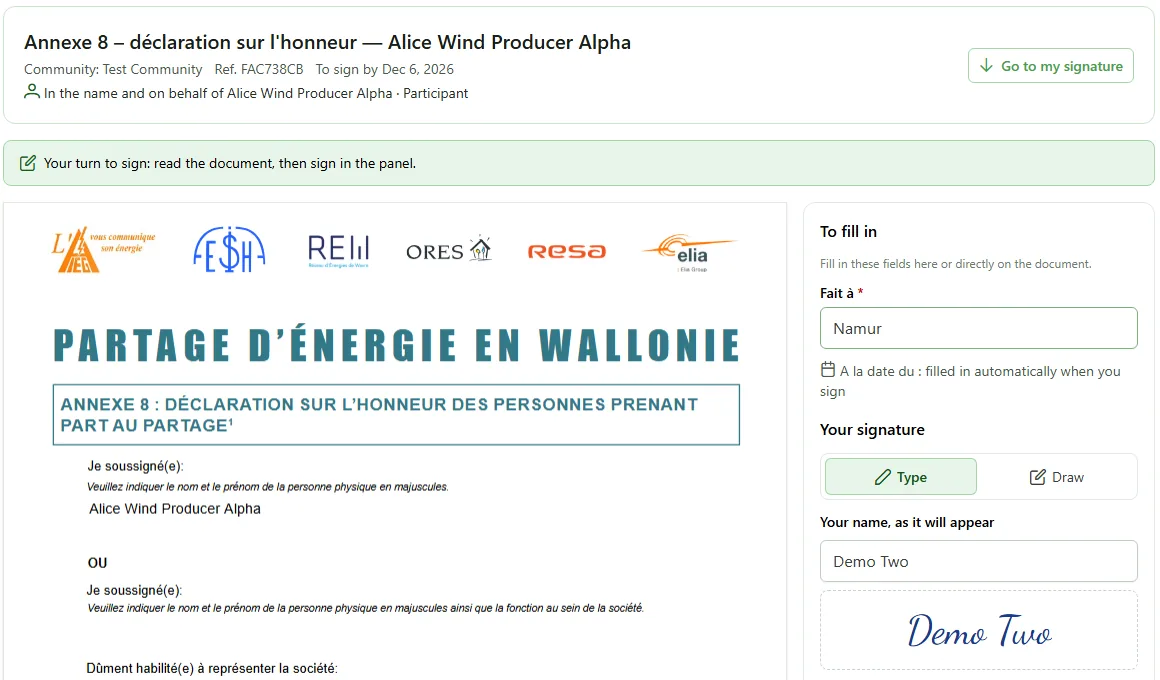
The signed PDF becomes the final version of the document. It is certified by OptimCE, each signature is timestamped, and the final file is in PAdES format, the European standard for PDF signatures. A chained evidence log and a sealed evidence report accompany the request.
It is a simple electronic signature within the meaning of the eIDAS Regulation, neither advanced nor qualified. The cryptographic key is the platform’s; the signatory’s identity rests on their authentication and on the evidence log. A simple signature cannot be rejected as evidence solely on the grounds that it is electronic, but it does not automatically have the value of a handwritten signature. So it does not carry the weight of a qualified signature, the only category the regulation treats as equivalent to a handwritten signature, and the one that itsme, for example, provides. OptimCE uses neither eID nor itsme today; itsme integration is planned, with no date announced yet. Signing is a separate module, enabled per community and disabled by default.
What each member can check
A participant appears by name in the documents sent to the regulator. OptimCE gives them a “What has been filed about me” page, with the documents in which they appear and the values transmitted, frozen at the filing date.
What it does not do
OptimCE sends nothing. No document goes to the CWaPE or to the grid operator, and there is no interface with them. You do the sending; the platform prepares the message, records the date and the channel, and keeps the exact version that went out.
Only annex 8 can be signed in the application. The agreements with the grid operator, amendments and membership forms are not signed in OptimCE. To sign annex 8, you need an OptimCE account linked to the member.
Production installations are not tracked. A change to a production installation is not detected: the procedure is created by hand.
Brussels and Flanders: planned, not yet available. The module currently prepares the CWaPE’s documents. Brussels and Flanders require their own documents: support for them is planned, but not yet implemented.
It does not check the substance for you. A form prefilled from wrong data is still wrong. Re-read what you send, and keep the CWaPE’s guides to hand.
Frequently asked questions
Does OptimCE file the dossier with the CWaPE?
No. OptimCE prepares the procedures and their documents, but you do the sending, from your own email account or from the online form. You then enter the date and the channel, and the procedure is frozen. There is no interface between OptimCE and the CWaPE or the grid operator.
Are the forms the CWaPE’s official versions?
Yes. OptimCE starts from the official, unmodified files: eleven sets of fillable PDFs, Excel workbooks and Word agreements. It prefills them with the community’s data; the fields it cannot derive remain editable.
How are the deadlines calculated?
In working days, excluding Belgian public holidays. Each procedure carries the community’s deadlines and those of third parties, such as the date by which the DSO or the CWaPE must have replied. In the application, reminders appear 14, 7 and 2 days before the deadline, then once it has passed; an email summary, disabled by default, can be added to them.
Can annex 8 be signed in OptimCE?
Yes, and it is the only document that can be signed in the application. The participant signs from an OptimCE account linked to the member, and the signed PDF becomes the final version of the document. It is a simple electronic signature within the meaning of the eIDAS Regulation, neither advanced nor qualified: it cannot be rejected as evidence solely on the grounds that it is electronic, but it does not automatically have the value of a handwritten signature.
Can members see what has been declared about them?
Yes. Each member has a “What has been filed about me” page: there they see the documents in which they appear and the values transmitted, as they stood on the filing date. These values do not change if their details are corrected afterwards.
Further reading
- CWaPE procedures and signing annex 8: what changed on 11 November 2026.
- Energy community: CWaPE documents and deadlines: each form, who files it, where and within what deadline.
- Create an energy community in Wallonia: the steps, from the legal form to the notification.