
Start a community on OptimCE
Six steps, from creating the community to the first invoice, each with its step-by-step guide.
Getting an energy community started in software is mostly a matter of knowing in which order to do things. This page follows the order in which a manager sets up a Walloon community in OptimCE, from its creation to the first invoice. Each step links to its step-by-step guide, which shows every screen with test data, and to the page that describes the module in detail.
What you need to hand
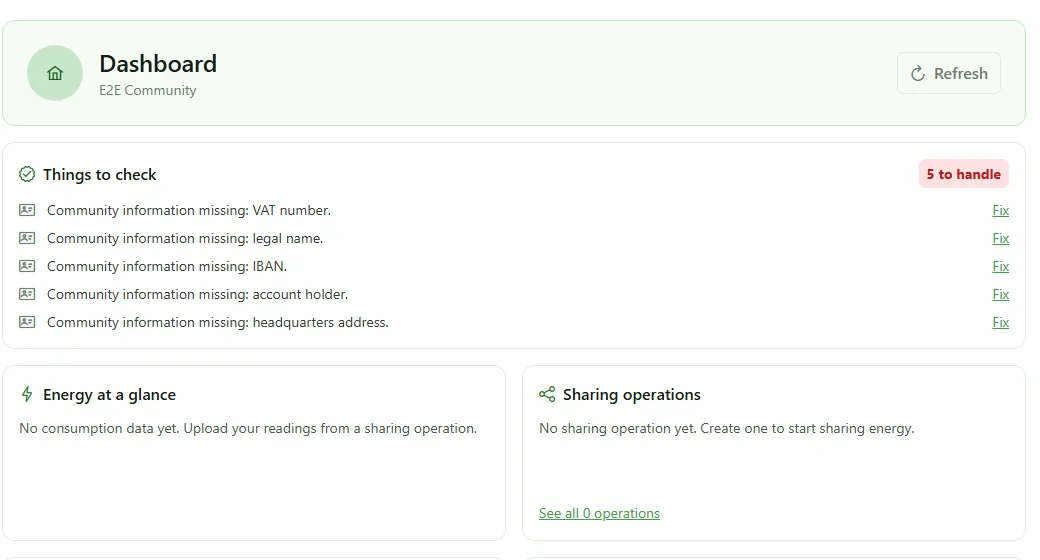
- For the community: its legal name, its VAT number, its registered office address, its IBAN and the account holder.
- For each member: their status (individual or company), name, email address, phone number, address and IBAN; for an individual, their national register number.
- For each meter: the installation address, the EAN, the meter number, its technical characteristics (phases, reading frequency, power) and its grid operator.
Nothing requires you to have all of it on day one: the dashboard lists what is still missing.
The path, step by step
1. Create the community
From “My communities”, create the community: a name and its regulator, with the CWaPE preselected for Wallonia. You become its administrator; you then need to activate it in order to configure it.
Guide: create a community. For the overview: energy community management software.
2. Add the members
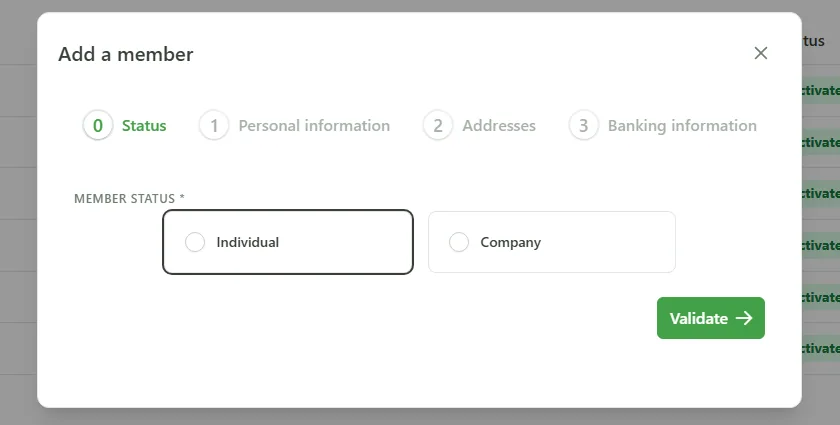
A four-step wizard records each member: their status, personal information, addresses and banking information. A dialog then offers to move straight on to adding their meter, which you can also do later from their record. Another option is to add members by invitation.
Guide: create a member. Module: members, meters and communities.
3. Add the meters
For each meter, enter its location and EAN, its characteristics, its grid operator, the member who holds it and its activation date. Its energy values, such as offtake power and generation capacity, feed the allocation calculations. Before its activation date, the meter is not included in any calculation.
Guide: create a meter. Module: members, meters and communities.
4. Create the sharing operation
Give it a name, a type (within a building, renewable energy community or citizen energy community) and the municipalities it covers. Tariffs, invoices and administrative dossiers are then attached to this operation.
Guide: create a sharing operation. Module: the operation’s CWaPE filing.
5. Set the allocation key
With the wizard, enter the number of consumers and their names, then iterations that each allocate a percentage of the energy, until 100% is reached. You can also have a key proposed from your data, then simulate it before adopting it.
Guide: create a key with the wizard. Module: allocation key: generate, simulate, track.
6. Bill
Set the selling price of the shared energy and the buyback price of the injection, import the period’s readings, generate a draft per member, issue, then track payments.
Guide: bill an operation, from tariff to payment. Module: the billing software.
And then
Each member finds their invoices in the application and can check what has been declared about them to the regulator. For dealings with the CWaPE, the administrative documents module prepares the operation’s official forms and calculates their deadlines in working days.
What it does not do
OptimCE does not create the legal entity. The community’s legal form, its articles of association and its general meeting are dealt with outside the application.
OptimCE files nothing on your behalf. Notifications to the CWaPE and agreements with the grid operator remain your responsibility; OptimCE prepares the documents and tracks the deadlines.
Brussels and Flanders: planned, not yet available. The regulator is chosen at creation, but billing and the administrative documents currently cover the Walloon framework. Brussels and Flanders are planned, but not yet implemented.
Frequently asked questions
Do I need to install OptimCE to get started?
No. OptimCE Cloud, at app.optimce.be, needs no installation: you create an account, then your community. Self-hosting is another route, for teams that want to host the platform themselves.
How much does OptimCE cost?
OptimCE Cloud is free throughout the alpha phase, and self-hosting is free for good. A paid offer may come later for the hosted version; alpha users will be told well in advance.
In what order should the steps be done?
In the order of this page, which follows the dependencies between modules: meters are attached to members, tariffs and invoices to a sharing operation, and billing applies that operation’s allocation.
Can I manage several communities with the same account?
Yes. A single OptimCE installation runs several communities, and an account can belong to several of them. You switch between them in “My communities”.
Further reading
- Create an energy community in Wallonia: the steps, from the legal form to the notification.
- Energy community: CWaPE documents and deadlines: what to file, where and within what deadline.
- Spreadsheet or software to run a community?: when a spreadsheet is still enough, and where it starts to break.